How to Rename Bluetooth Devices in Windows 11

This guide shows you how to change the name of a Bluetooth device on your Windows 11 computer.
Bluetooth is a way for devices to talk to each other without wires. It works over short distances. You can connect things like speakers, headphones, and phones to your PC.
When you pair a Bluetooth device with your computer, you can move files, play music, or make calls. It all depends on what your device can do.
Why Rename Your Bluetooth Device?
Renaming your Bluetooth device helps you keep track of your gadgets. If you have two pairs of headphones or multiple speakers, it can be hard to tell which is which. A custom name makes it easy to pick the right one. It also makes your device list look cleaner and more organized.
What Happens When You Rename Your Device?
When you rename a device, Windows 11 creates a local alias for it. This change only affects how your computer displays the device. It does not change the actual name stored inside the device’s hardware. Because of this, the name might reset if you pair the device with a different computer or phone.
Windows 11 22H2/23H2 UI Changes: The Redirection Issue
If you are using a newer version of Windows 11 like 22H2 or 23H2, you might notice something strange. When you try to open the classic Devices and Printers folder, Windows often redirects you to the modern Settings app instead. This happens because Microsoft is slowly moving all settings to the new interface. Unfortunately, the new Settings app does not always provide the same advanced properties tab needed to rename Bluetooth devices. This is why many users feel stuck.
How to Rename a Bluetooth Device in Windows 11
If the standard Settings app does not let you rename your device, you can still use the legacy Control Panel or the Registry Editor. Follow these steps carefully.
Method 1: Using the Legacy Control Panel
- Press the Windows key and type Control Panel, then press Enter.
- Click View devices and printers under the Hardware and Sound section.
- Find your device in the list.
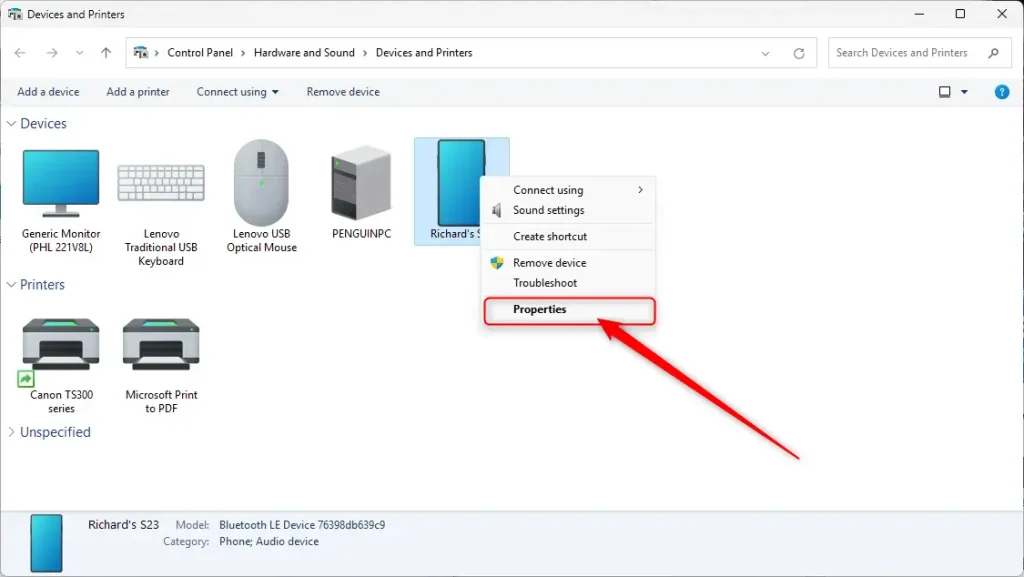
- Right-click the device and select Properties.
- Go to the Bluetooth tab.
- Type the new name in the box and click OK.
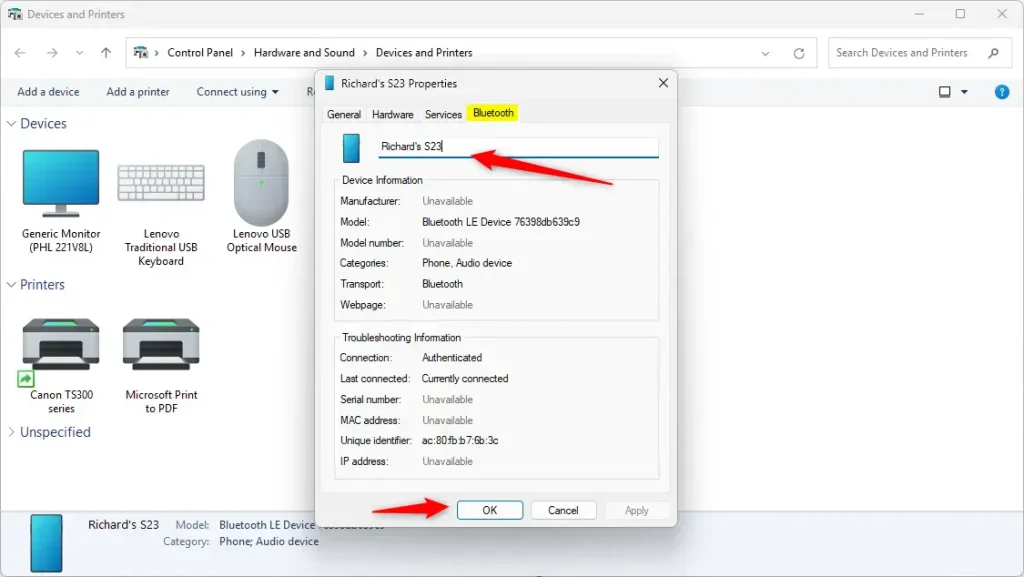
- ⚠️ Requires admin privileges: You may need to disconnect and reconnect your device for the change to show up.
Method 2: Using the Registry Editor (Advanced)
If the name still does not stick, you can force it through the registry. ⚠️ Requires admin privileges
- Press Windows + R, type regedit, and press Enter.
- Navigate to this path: HKEY_LOCAL_MACHINE\SYSTEM\CurrentControlSet\Services\BTHPORT\Parameters\Devices
- Look for the folder that matches your device’s unique ID.
- Double-click the Name entry and type your new name.
- Restart your computer to apply the changes.
Summary
Renaming your Bluetooth devices in Windows 11 makes your setup easier to manage. While newer versions of Windows 11 try to push you toward the Settings app, you can still use the legacy Control Panel or Registry Editor to change names. Remember that these changes are local to your computer and help you identify your gear quickly.
Why does Windows 11 redirect me to Settings when I open Devices and Printers?
Microsoft is phasing out the legacy Control Panel in favor of the modern Settings app. In newer Windows 11 builds like 22H2 and 23H2, the system automatically redirects you to the Settings app to centralize device management, even if some advanced features are missing from the new interface.
Can I rename a Bluetooth device if the option is missing in Settings?
Yes, you can. If the option is missing in the modern Settings app, you can use the legacy Control Panel by navigating to Devices and Printers. If that fails, you can manually update the device name using the Registry Editor under the BTHPORT parameters path.
Will renaming a Bluetooth device affect its connection stability?
No, renaming a Bluetooth device on your computer is purely cosmetic. It creates a local alias for your Windows system to display. It does not change the hardware settings, firmware, or communication protocols of the device, so your connection stability will remain exactly the same as it was before.
Was this guide helpful?




Leave a Reply Cancel reply